> ## Documentation Index
> Fetch the complete documentation index at: https://docs.pavoai.com/llms.txt
> Use this file to discover all available pages before exploring further.
# dbt
> Connect your dbt artifacts so Pavo can learn from your data models.
The dbt connector reads dbt artifact files (`manifest.json`, `run_results.json`, `catalog.json`, `sources.json`) and indexes them for RAG search.
Pavo supports two data sources for dbt artifacts:
| Source | Best for |
| - | - |
| **S3** | dbt Cloud artifact export, CI/CD pipelines |
| **Snowflake** | dbt artifacts stored in Snowflake tables |
***
## Option A: S3 Data Source
### What You Need to Provide
| Item | Required | Example |
| - | - | - |
| `s3_uri` | Yes | `s3://bucket/prefix` |
| `aws_access_key_id` | Yes | `AKIA...` |
| `aws_secret_access_key` | Yes | `wJalr...` |
| `region` | No | `us-east-1` (default) |
## Step 1: Upload Artifacts to S3
Customers already have a dbt project that produces artifacts. These files are being uploaded to S3 (e.g., via dbt Cloud artifact export or a CI/CD step):
```
s3://acme-dbt-artifacts/dbt/target/manifest.json # REQUIRED
s3://acme-dbt-artifacts/dbt/target/run_results.json
s3://acme-dbt-artifacts/dbt/target/catalog.json
s3://acme-dbt-artifacts/dbt/target/sources.json
```
## Step 2: Create a Read-Only IAM User
Create a dedicated IAM user in your AWS account with minimal S3 read permissions:
```bash theme={null}
aws iam create-user --user-name pavo-dbt-reader
aws iam create-access-key --user-name pavo-dbt-reader
```
**Minimum IAM policy** (attach to the user):
```json theme={null}
{
"Version": "2012-10-17",
"Statement": [
{
"Effect": "Allow",
"Action": "s3:ListBucket",
"Resource": "arn:aws:s3:::acme-dbt-artifacts",
"Condition": {
"StringLike": { "s3:prefix": ["dbt/target/*"] }
}
},
{
"Effect": "Allow",
"Action": "s3:GetObject",
"Resource": "arn:aws:s3:::acme-dbt-artifacts/dbt/target/*"
}
]
}
```
## Step 3: Add the Connector in Pavo
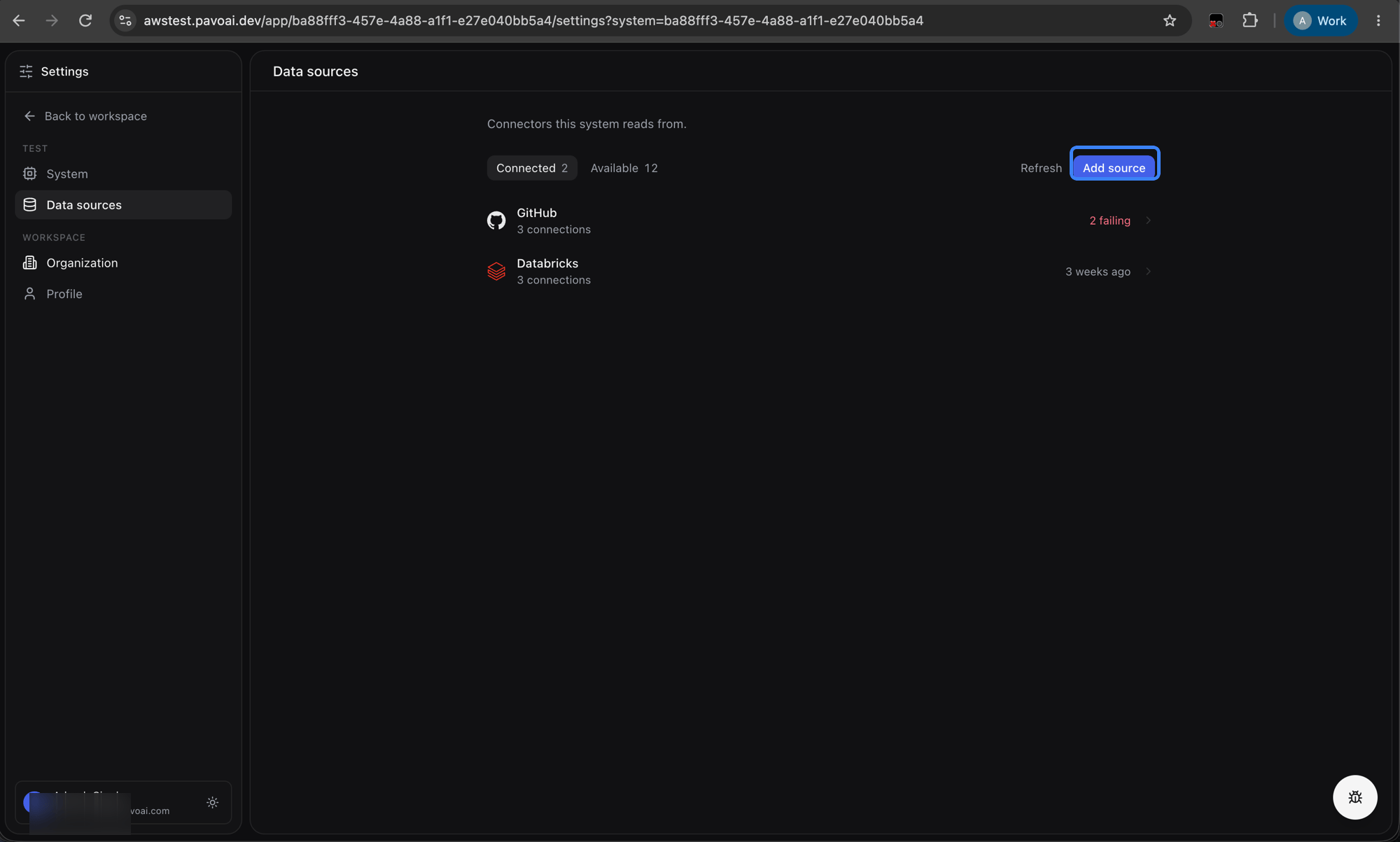
Navigate to **Settings → Data sources** and click **Add source**.
 Select **dbt** from the connector list.
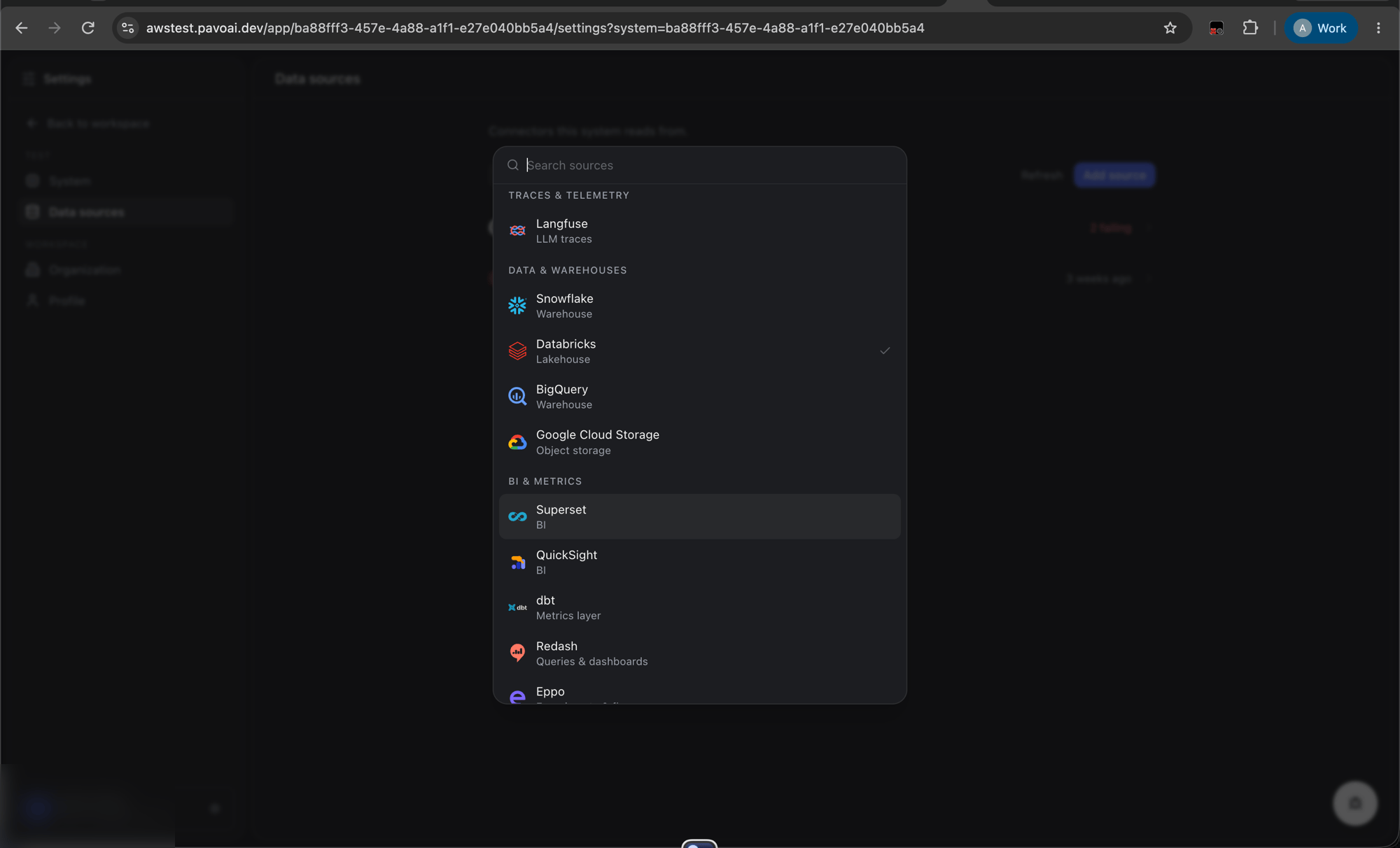 Then:
3\. Add S3 URI of the location where dbt artifacts are stored
4\. Add AWS access key ID and secret key
5\. Click **Connect**
This adds the connection and automatically dispatches a sync job. You can see the progress of data ingestion on the same connectors page.
***
## Option B: Snowflake Data Source
If your dbt artifacts are stored in Snowflake tables (e.g., via dbt Cloud's Snowflake artifact storage), use this option.
### What You Need to Provide
| Item | Required | Example |
| - | - | - |
| `account` | Yes | `xy12345.us-central1.gcp` |
| `user` | Yes | `PAVO_DBT_READER` |
| `password` or `private_key` | Yes | (one of these) |
| `database` | Yes | `ANALYTICS` |
| `schema` | Yes | `DBT_ARTIFACTS` |
| `manifest_table` | Yes | `MANIFEST` |
### Setup
1. Create a read-only Snowflake user with access to the artifact tables
2. In Pavo, go to **Connectors → dbt**
3. Select **Snowflake** as the data source type
4. Enter your Snowflake credentials
5. Click **Connect**
Then:
3\. Add S3 URI of the location where dbt artifacts are stored
4\. Add AWS access key ID and secret key
5\. Click **Connect**
This adds the connection and automatically dispatches a sync job. You can see the progress of data ingestion on the same connectors page.
***
## Option B: Snowflake Data Source
If your dbt artifacts are stored in Snowflake tables (e.g., via dbt Cloud's Snowflake artifact storage), use this option.
### What You Need to Provide
| Item | Required | Example |
| - | - | - |
| `account` | Yes | `xy12345.us-central1.gcp` |
| `user` | Yes | `PAVO_DBT_READER` |
| `password` or `private_key` | Yes | (one of these) |
| `database` | Yes | `ANALYTICS` |
| `schema` | Yes | `DBT_ARTIFACTS` |
| `manifest_table` | Yes | `MANIFEST` |
### Setup
1. Create a read-only Snowflake user with access to the artifact tables
2. In Pavo, go to **Connectors → dbt**
3. Select **Snowflake** as the data source type
4. Enter your Snowflake credentials
5. Click **Connect**