> ## Documentation Index
> Fetch the complete documentation index at: https://docs.pavoai.com/llms.txt
> Use this file to discover all available pages before exploring further.
# QuickSight
> Connect Amazon QuickSight so Pavo can read your dashboards, analyses, and datasets.
This guide walks you through connecting your Amazon QuickSight account to Pavo. By the end, Pavo will be able to read your dashboards, analyses, and datasets.
## Prerequisites
* An AWS account with Amazon QuickSight enabled
* IAM administrator access (or sufficient privileges to create IAM users and policies)
* Your **AWS Account ID** (12-digit number, found in the top-right menu of the AWS Console)
* The **AWS Region** where your QuickSight is set up (e.g. `us-east-1`, `ap-south-1`)
## Step 1: Create an IAM Policy for QuickSight Read Access
Pavo needs **read-only** access to your QuickSight resources. Create a dedicated IAM policy with the minimum required permissions.
1. Open the [IAM Console](https://console.aws.amazon.com/iam/) and navigate to **Policies** → **Create policy**.
2. Switch to the **JSON** tab and paste the following policy document:
```json theme={null}
{
"Version": "2012-10-17",
"Statement": [
{
"Sid": "PavoQuickSightReadOnly",
"Effect": "Allow",
"Action": [
"quicksight:ListDashboards",
"quicksight:DescribeDashboardDefinition",
"quicksight:DescribeDashboardPermissions",
"quicksight:ListAnalyses",
"quicksight:DescribeAnalysisDefinition",
"quicksight:DescribeAnalysisPermissions",
"quicksight:ListDataSets",
"quicksight:DescribeDataSet",
"quicksight:DescribeDataSetPermissions"
],
"Resource": "*"
}
]
}
```
3. Click **Next**, give the policy a name (e.g. `PavoQuickSightReadOnly`), and click **Create policy**.
The `Resource: "*"` scope is required because QuickSight list operations do not support resource-level restrictions. All actions above are strictly read-only: Pavo cannot create, modify, or delete any QuickSight resources.
## Step 2: Create a Dedicated IAM User
Create a dedicated IAM user for Pavo so access can be audited and revoked independently.
1. In the IAM Console, go to **Users** → **Create user**.
2. Enter a username (e.g. `pavo-quicksight-reader`).
3. **Do not** enable AWS Management Console access: Pavo only needs programmatic access.
4. Click **Next**.
5. On the permissions page, choose **Attach policies directly** and search for the policy you created in Step 1 (`PavoQuickSightReadOnly`). Select it.
6. Click **Next** → **Create user**.
## Step 3: Generate Access Keys
Pavo authenticates using long-lived IAM access keys (access key ID + secret access key).
1. Open the IAM user you just created (`pavo-quicksight-reader`).
2. Go to the **Security credentials** tab.
3. Under **Access keys**, click **Create access key**.
4. Select the use case **Third-party service** and acknowledge the recommendation.
5. Click **Create access key**.
6. **Copy both values immediately**, the secret access key is only shown once:
| Value | Example |
| --------------------- | ------------------------------------------ |
| **Access key ID** | `AKIAIOSFODNN7EXAMPLE` |
| **Secret access key** | `wJalrXUtnFEMI/K7MDENG/bPxRfiCYEXAMPLEKEY` |
Store these values in a password manager. If you lose the secret key, you'll need to delete the access key and create a new one.
## Step 4: Gather Your Connection Details
You need four values to connect Pavo to QuickSight:
| Field | Where to find it | Example |
| ----------------------- | ---------------------------------------------------- | ------------------------------------------ |
| `aws_access_key_id` | Step 3 above | `AKIAIOSFODNN7EXAMPLE` |
| `aws_secret_access_key` | Step 3 above | `wJalrXUtnFEMI/K7MDENG/bPxRfiCYEXAMPLEKEY` |
| `region` | AWS Console → QuickSight → top-right region selector | `us-east-1` |
| `aws_account_id` | AWS Console → top-right → "Account ID" | `123456789012` |
## Step 5: Add the Connector in Pavo
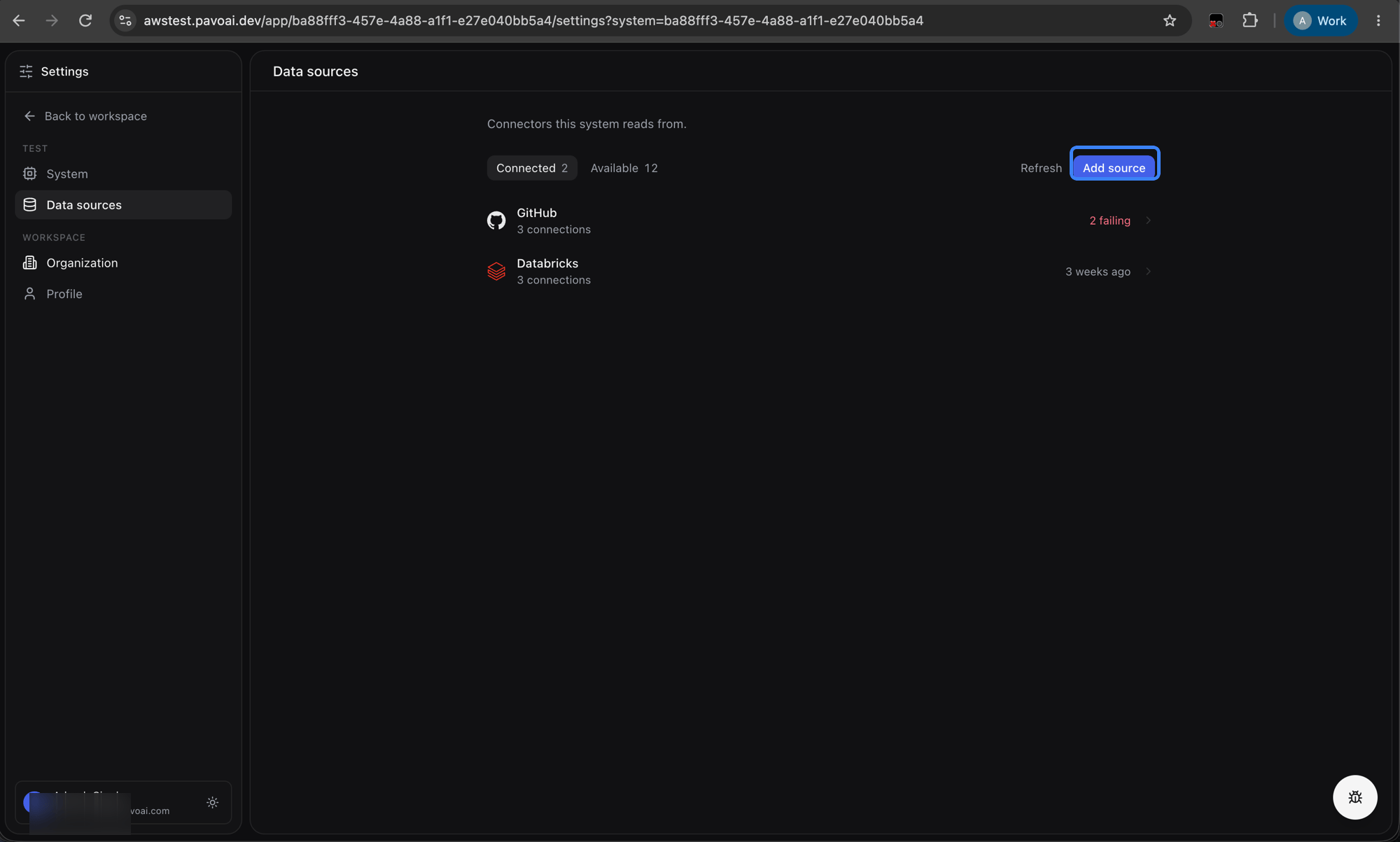
Navigate to **Settings → Data sources** and click **Add source**.
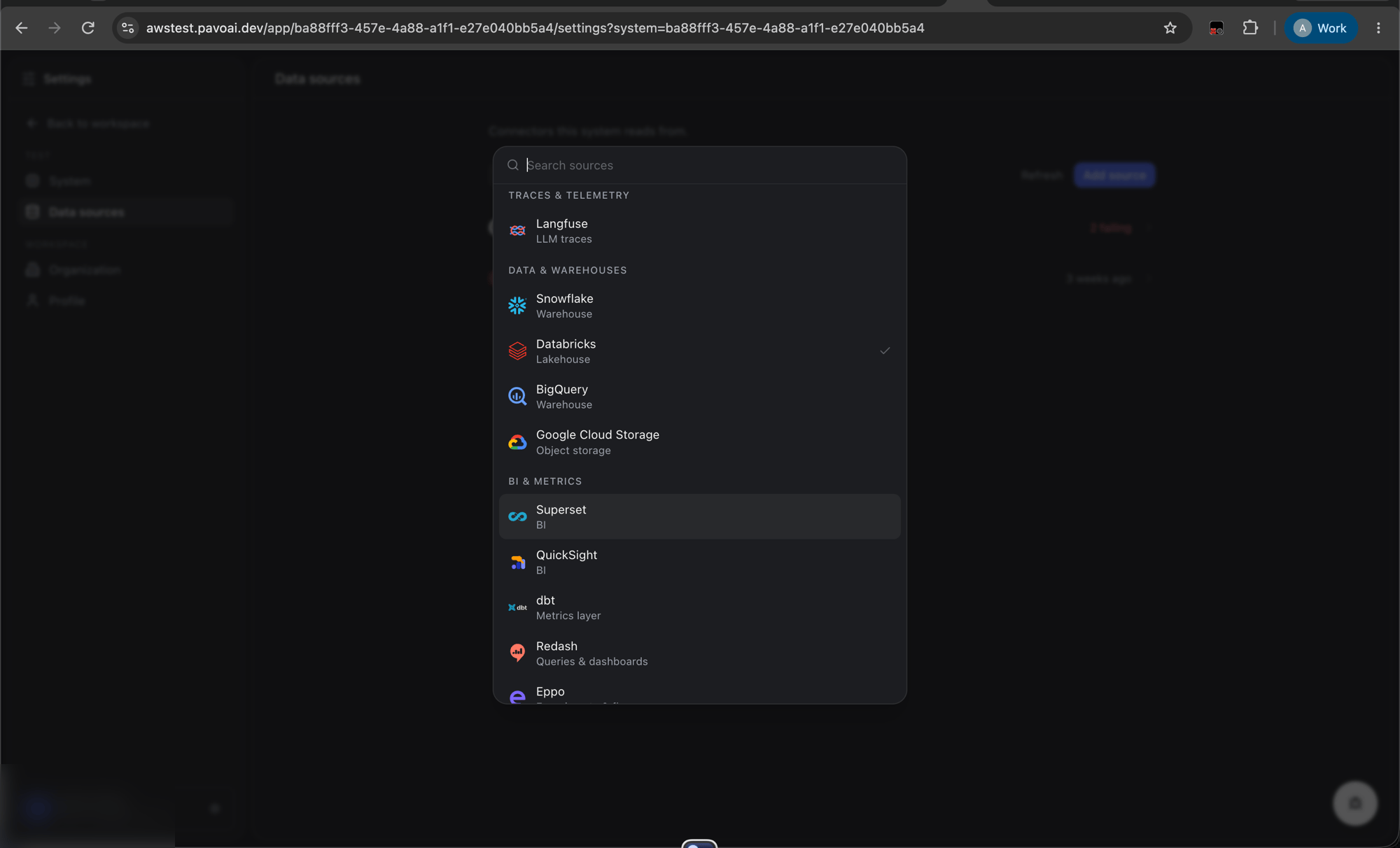
 Select **QuickSight** from the connector list.
 Enter the four credential fields from Step 4:
* **AWS Access Key ID**
* **AWS Secret Access Key**
* **Region**
* **AWS Account ID**
Click **Save**. Pavo will immediately verify connectivity by making a lightweight API call to your QuickSight account.
## Step 6: Trigger Sync
Once the connector is saved and verified, click **Sync Now** on the QuickSight connector. Pavo will begin indexing:
| Resource Type | What gets synced |
| -------------- | --------------------------------------------------- |
| **Dashboards** | Dashboard metadata, embedded sheets, and visuals |
| **Analyses** | Analysis workbenches with sheets and visuals |
| **Datasets** | Dataset definitions, columns, and calculated fields |
Subsequent syncs are incremental: only resources modified since the last sync are reprocessed.
## Troubleshooting
### "Failed to connect to QuickSight"
* Verify the **region** matches where QuickSight is active in your account. QuickSight is regional: if your dashboards are in `us-east-1`, you must use that region.
* Confirm the IAM user has the `PavoQuickSightReadOnly` policy attached.
* Ensure the access key is active (IAM Console → Users → Security credentials → Access keys → Status should be **Active**).
### "Access Denied" errors during sync
* Check that all nine permissions in the IAM policy are present. A common mistake is omitting the `Describe*Permissions` actions.
* If your organization uses [AWS Service Control Policies (SCPs)](https://docs.aws.amazon.com/organizations/latest/userguide/orgs_manage_policies_scps.html), ensure they do not block QuickSight read actions.
### Missing dashboards or analyses
* QuickSight resources are scoped to the AWS account. Confirm the `aws_account_id` matches the account that owns the dashboards.
* Analyses with a status of `DELETED` in QuickSight are automatically excluded.
## Revoking Access
To disconnect Pavo from your QuickSight account:
1. Go to IAM Console → Users → `pavo-quicksight-reader` → Security credentials.
2. Under Access keys, click **Actions** → **Deactivate** (to temporarily disable) or **Delete** (to permanently remove).
3. Optionally delete the IAM user entirely.
Enter the four credential fields from Step 4:
* **AWS Access Key ID**
* **AWS Secret Access Key**
* **Region**
* **AWS Account ID**
Click **Save**. Pavo will immediately verify connectivity by making a lightweight API call to your QuickSight account.
## Step 6: Trigger Sync
Once the connector is saved and verified, click **Sync Now** on the QuickSight connector. Pavo will begin indexing:
| Resource Type | What gets synced |
| -------------- | --------------------------------------------------- |
| **Dashboards** | Dashboard metadata, embedded sheets, and visuals |
| **Analyses** | Analysis workbenches with sheets and visuals |
| **Datasets** | Dataset definitions, columns, and calculated fields |
Subsequent syncs are incremental: only resources modified since the last sync are reprocessed.
## Troubleshooting
### "Failed to connect to QuickSight"
* Verify the **region** matches where QuickSight is active in your account. QuickSight is regional: if your dashboards are in `us-east-1`, you must use that region.
* Confirm the IAM user has the `PavoQuickSightReadOnly` policy attached.
* Ensure the access key is active (IAM Console → Users → Security credentials → Access keys → Status should be **Active**).
### "Access Denied" errors during sync
* Check that all nine permissions in the IAM policy are present. A common mistake is omitting the `Describe*Permissions` actions.
* If your organization uses [AWS Service Control Policies (SCPs)](https://docs.aws.amazon.com/organizations/latest/userguide/orgs_manage_policies_scps.html), ensure they do not block QuickSight read actions.
### Missing dashboards or analyses
* QuickSight resources are scoped to the AWS account. Confirm the `aws_account_id` matches the account that owns the dashboards.
* Analyses with a status of `DELETED` in QuickSight are automatically excluded.
## Revoking Access
To disconnect Pavo from your QuickSight account:
1. Go to IAM Console → Users → `pavo-quicksight-reader` → Security credentials.
2. Under Access keys, click **Actions** → **Deactivate** (to temporarily disable) or **Delete** (to permanently remove).
3. Optionally delete the IAM user entirely.