> ## Documentation Index
> Fetch the complete documentation index at: https://docs.pavoai.com/llms.txt
> Use this file to discover all available pages before exploring further.
# Redash
> Connect your Redash instance so Pavo can read dashboards, visualizations, and saved queries.
This guide walks you through connecting your Redash instance to Pavo. By the end, Pavo will be able to read your dashboards, query-backed visualizations, and saved queries.
## Prerequisites
* A running [Redash](https://redash.io/) instance (self-hosted or hosted)
* A Redash user account with access to the dashboards and queries you want to sync
* The **base URL** of your Redash instance (e.g. `https://redash.yourcompany.com`)
## Step 1: Generate a Redash API Key
Pavo authenticates using a Redash **API key**, which is tied to a specific user account.
1. Log in to your Redash instance.
2. Click your **profile icon** in the top-right corner → **Profile**.
3. On your profile page, find the **API Key** section.
4. Your API key is displayed here. Click the copy icon or select and copy the value.
The API key grants the same level of access as the user it belongs to. Pavo will only be able to see dashboards and queries that this user can access.
### Recommended: Create a Dedicated Service Account
For production use, create a dedicated Redash user for Pavo rather than using a personal account:
1. Go to **Settings** → **Users** → **New User**.
2. Create a user (e.g. `pavo-reader@yourcompany.com`).
3. Assign the user to the appropriate **groups** that have access to the dashboards and data sources you want Pavo to sync.
4. Log in as the new user and copy their API key from the profile page.
This approach ensures:
* Pavo's access is auditable and independent of any individual's account
* Access can be revoked without affecting any person's Redash account
* Permissions are explicitly scoped via Redash group membership
## Step 2: Gather Your Connection Details
You need two values to connect Pavo to Redash:
| Field | Description | Example |
| ---------- | -------------------------------------------------------- | ---------------------------------- |
| `base_url` | The root URL of your Redash instance (no trailing slash) | `https://redash.yourcompany.com` |
| `api_key` | The API key from Step 1 | `abcdef1234567890abcdef1234567890` |
## Step 3: Add the Connector in Pavo
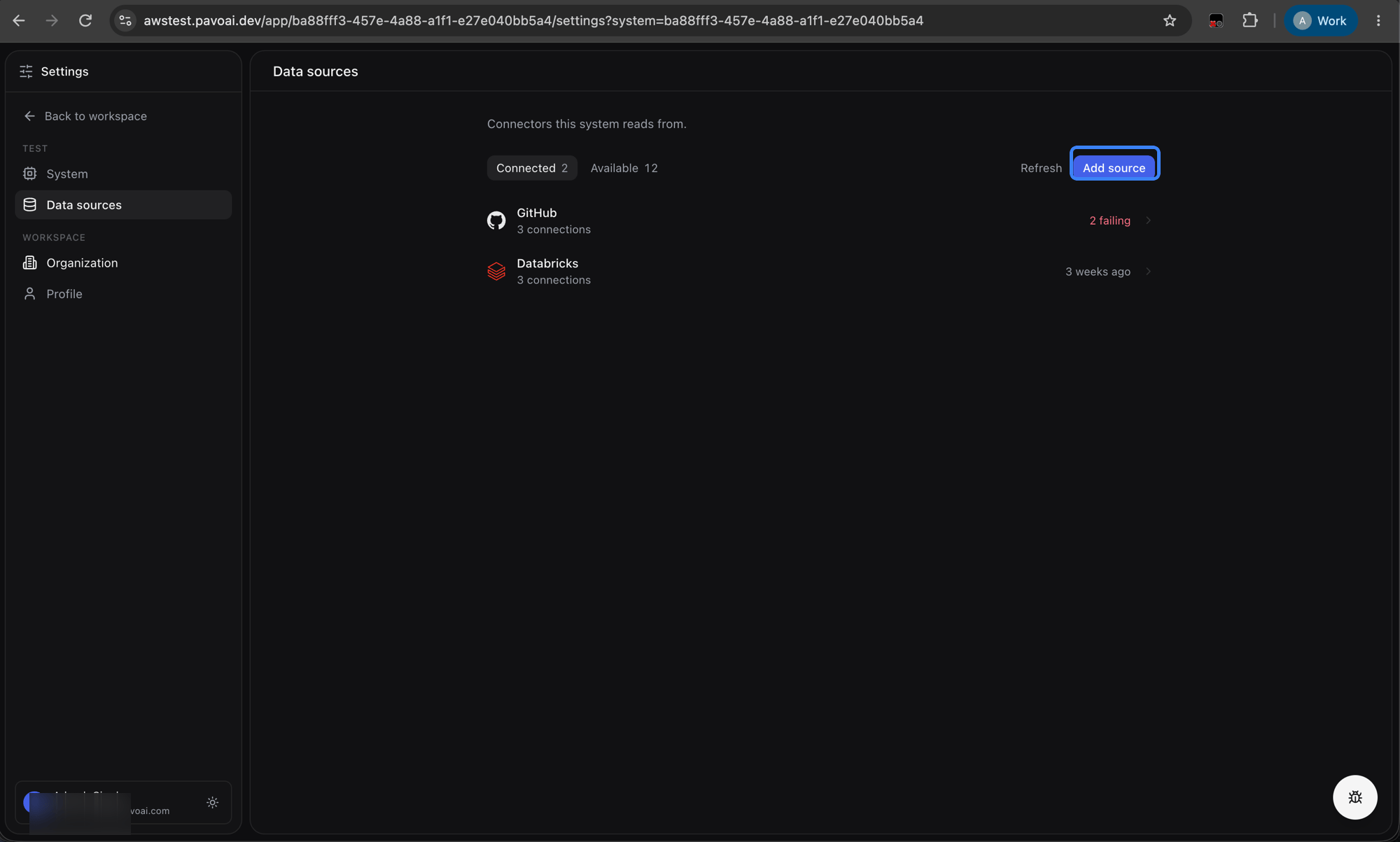
Navigate to **Settings → Data sources** and click **Add source**.
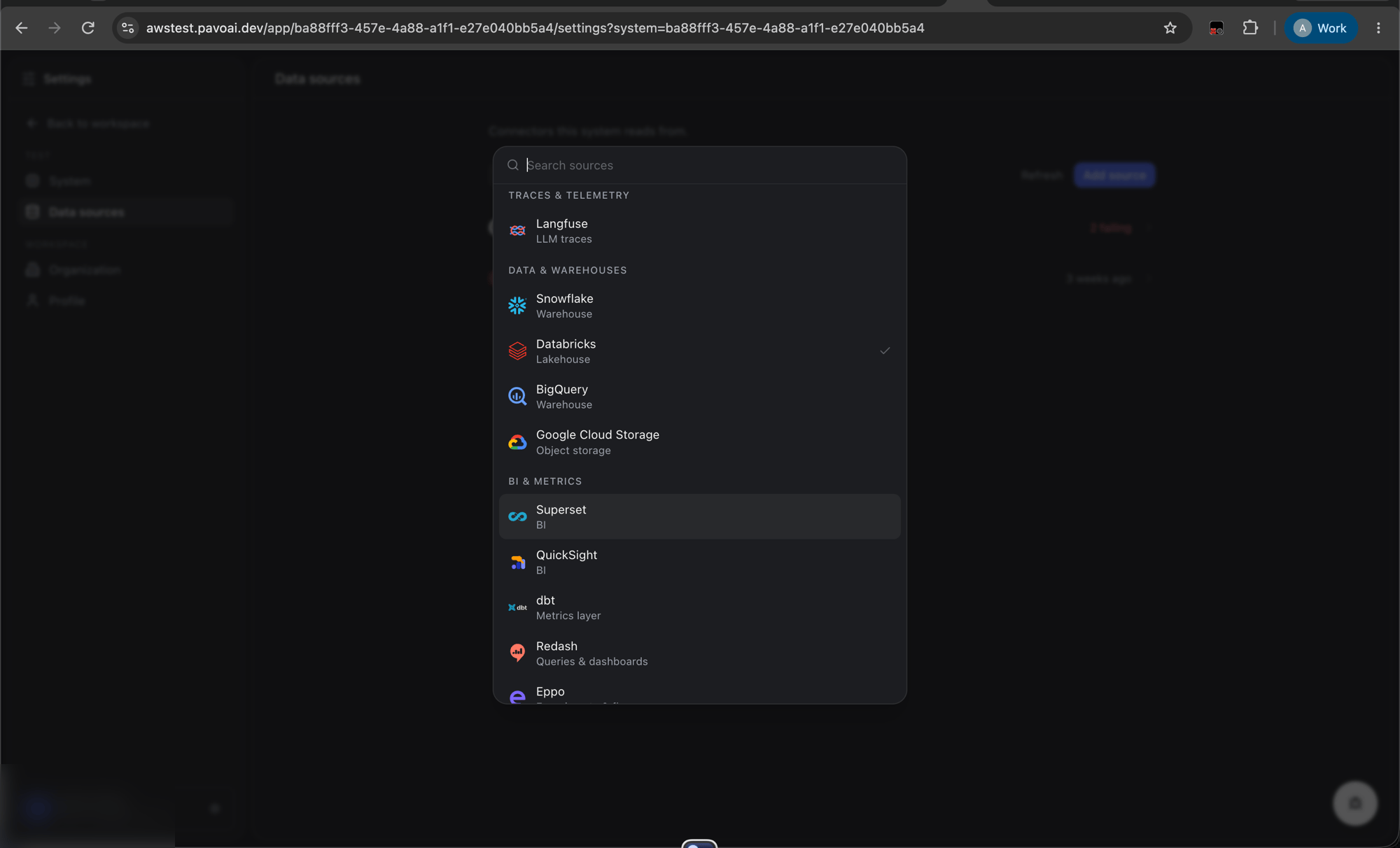
 Select **Redash** from the connector list.
 Enter the connection details:
* **Base URL**: your Redash instance URL
* **API Key**: the API key from Step 1
Click **Save**. Pavo will verify connectivity by fetching the Redash instance version via the `/status.json` endpoint.
## Step 4: Trigger Sync
Once the connector is saved and verified, click **Sync Now** on the Redash connector. Pavo will begin indexing:
| Resource Type | What gets synced |
| ------------------ | -------------------------------------------------------------------------------------------------------------------------------------------------- |
| **Dashboards** | Dashboard metadata: name, description, creation/update dates, author |
| **Visualizations** | Query-backed widgets on dashboards: visualization type, underlying SQL query, data source, tags, parameters, and a preview of up to 10 result rows |
| **Saved Queries** | All saved queries: SQL text, data source, schedule status, tags, creation/update dates |
Text-only dashboard widgets (those without a backing query) are skipped.
Subsequent syncs are incremental: only resources modified since the last sync are reprocessed.
## Redash API Endpoints Used
For transparency, here are the Redash REST API endpoints Pavo accesses (all read-only):
| Endpoint | Purpose |
| ----------------------------- | ------------------------------------------------- |
| `GET /status.json` | Detect Redash version and verify connectivity |
| `GET /api/dashboards` | List all dashboards (paginated) |
| `GET /api/dashboards/{id}` | Dashboard detail with embedded widgets |
| `GET /api/queries` | List all saved queries (paginated) |
| `GET /api/queries/{id}` | Query detail |
| `GET /api/query_results/{id}` | Cached query results (for visualization previews) |
All requests use the header `Authorization: Key `.
## Troubleshooting
### "Failed to connect to Redash"
* Verify the **base URL** is correct and reachable from the network where Pavo is running. Try opening `https://redash.yourcompany.com/status.json` in a browser: you should see a JSON response with version info.
* Ensure there is no trailing slash in the base URL (`https://redash.yourcompany.com`, not `https://redash.yourcompany.com/`).
* Check that the API key is valid, test it with: `curl -H "Authorization: Key YOUR_API_KEY" https://redash.yourcompany.com/api/dashboards?page_size=1`
### Missing dashboards or queries
* Pavo can only see dashboards and queries that the API key's user has access to. Verify the user is a member of the correct **Redash groups**.
* Archived dashboards and queries may not appear. Check if the resources are archived in the Redash UI.
### "Network unreachable" or timeout errors
* If your Redash instance is behind a VPN or firewall, ensure that Pavo's servers can reach it. You may need to whitelist Pavo's IP addresses or set up a VPN tunnel.
* For self-hosted Redash, ensure the instance is accessible via HTTPS on the standard port (443).
### Visualization data not showing
* Pavo fetches cached query results for visualization previews. If a query has never been run, there will be no cached result to display.
* Run the query manually in Redash at least once so that a `latest_query_data_id` is available.
## Revoking Access
To disconnect Pavo from your Redash instance:
1. Log in to Redash as an admin.
2. Go to **Settings** → **Users** → find the Pavo service account user.
3. Click **Disable** to deactivate the account, which immediately invalidates the API key.
Alternatively, if you used a personal API key, you can regenerate your API key from your profile page, this invalidates the old key.
Enter the connection details:
* **Base URL**: your Redash instance URL
* **API Key**: the API key from Step 1
Click **Save**. Pavo will verify connectivity by fetching the Redash instance version via the `/status.json` endpoint.
## Step 4: Trigger Sync
Once the connector is saved and verified, click **Sync Now** on the Redash connector. Pavo will begin indexing:
| Resource Type | What gets synced |
| ------------------ | -------------------------------------------------------------------------------------------------------------------------------------------------- |
| **Dashboards** | Dashboard metadata: name, description, creation/update dates, author |
| **Visualizations** | Query-backed widgets on dashboards: visualization type, underlying SQL query, data source, tags, parameters, and a preview of up to 10 result rows |
| **Saved Queries** | All saved queries: SQL text, data source, schedule status, tags, creation/update dates |
Text-only dashboard widgets (those without a backing query) are skipped.
Subsequent syncs are incremental: only resources modified since the last sync are reprocessed.
## Redash API Endpoints Used
For transparency, here are the Redash REST API endpoints Pavo accesses (all read-only):
| Endpoint | Purpose |
| ----------------------------- | ------------------------------------------------- |
| `GET /status.json` | Detect Redash version and verify connectivity |
| `GET /api/dashboards` | List all dashboards (paginated) |
| `GET /api/dashboards/{id}` | Dashboard detail with embedded widgets |
| `GET /api/queries` | List all saved queries (paginated) |
| `GET /api/queries/{id}` | Query detail |
| `GET /api/query_results/{id}` | Cached query results (for visualization previews) |
All requests use the header `Authorization: Key `.
## Troubleshooting
### "Failed to connect to Redash"
* Verify the **base URL** is correct and reachable from the network where Pavo is running. Try opening `https://redash.yourcompany.com/status.json` in a browser: you should see a JSON response with version info.
* Ensure there is no trailing slash in the base URL (`https://redash.yourcompany.com`, not `https://redash.yourcompany.com/`).
* Check that the API key is valid, test it with: `curl -H "Authorization: Key YOUR_API_KEY" https://redash.yourcompany.com/api/dashboards?page_size=1`
### Missing dashboards or queries
* Pavo can only see dashboards and queries that the API key's user has access to. Verify the user is a member of the correct **Redash groups**.
* Archived dashboards and queries may not appear. Check if the resources are archived in the Redash UI.
### "Network unreachable" or timeout errors
* If your Redash instance is behind a VPN or firewall, ensure that Pavo's servers can reach it. You may need to whitelist Pavo's IP addresses or set up a VPN tunnel.
* For self-hosted Redash, ensure the instance is accessible via HTTPS on the standard port (443).
### Visualization data not showing
* Pavo fetches cached query results for visualization previews. If a query has never been run, there will be no cached result to display.
* Run the query manually in Redash at least once so that a `latest_query_data_id` is available.
## Revoking Access
To disconnect Pavo from your Redash instance:
1. Log in to Redash as an admin.
2. Go to **Settings** → **Users** → find the Pavo service account user.
3. Click **Disable** to deactivate the account, which immediately invalidates the API key.
Alternatively, if you used a personal API key, you can regenerate your API key from your profile page, this invalidates the old key.