

manifest.json, run_results.json, catalog.json, sources.json) and indexes them for RAG search.
Pavo supports two data sources for dbt artifacts:
Option A: S3 Data Source
What You Need to Provide
Step 1: Upload Artifacts to S3
Customers already have a dbt project that produces artifacts. These files are being uploaded to S3 (e.g., via dbt Cloud artifact export or a CI/CD step):Step 2: Create a Read-Only IAM User
Create a dedicated IAM user in your AWS account with minimal S3 read permissions:Step 3: Add the Connector in Pavo
Navigate to Settings → Data sources and click Add source.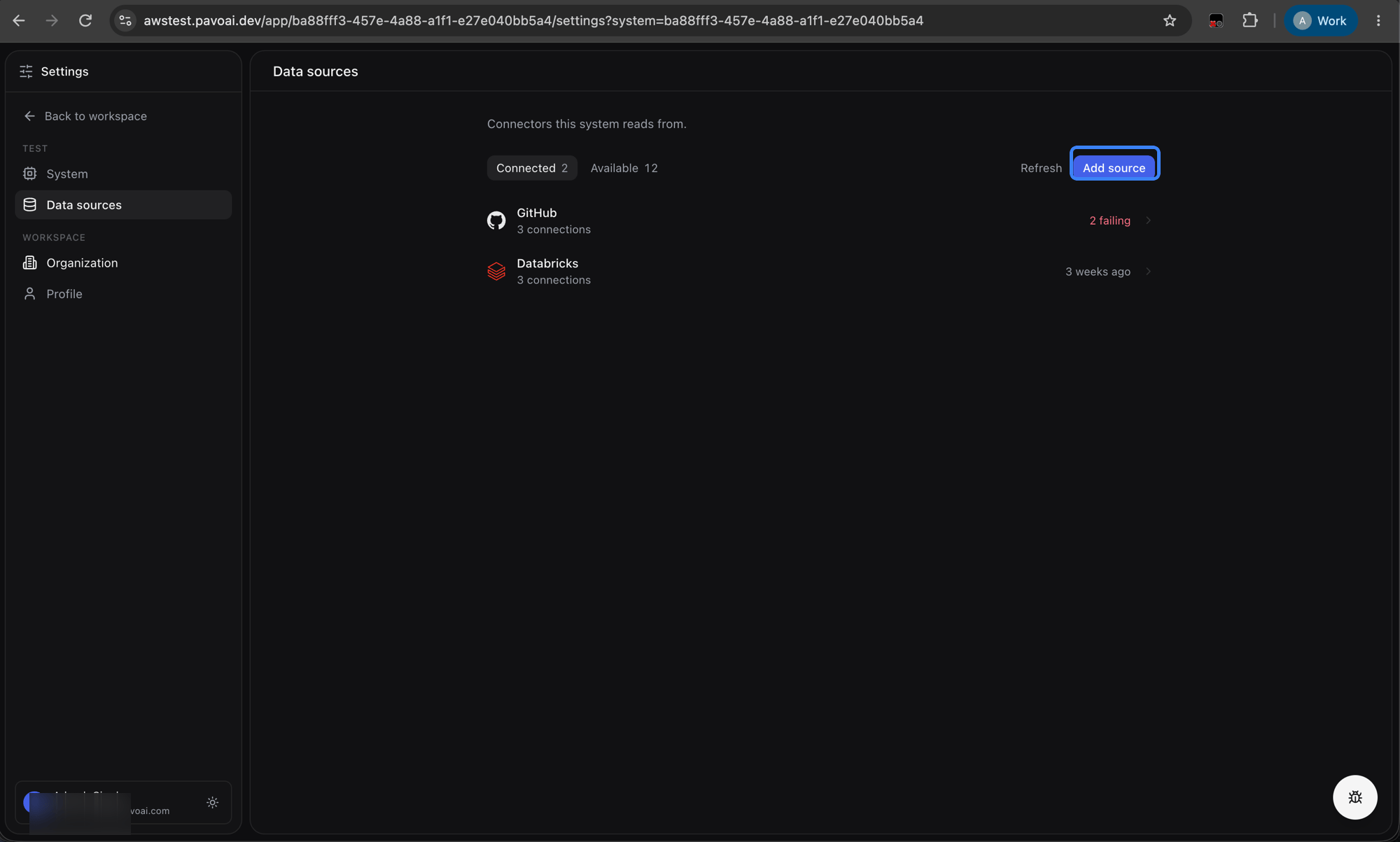
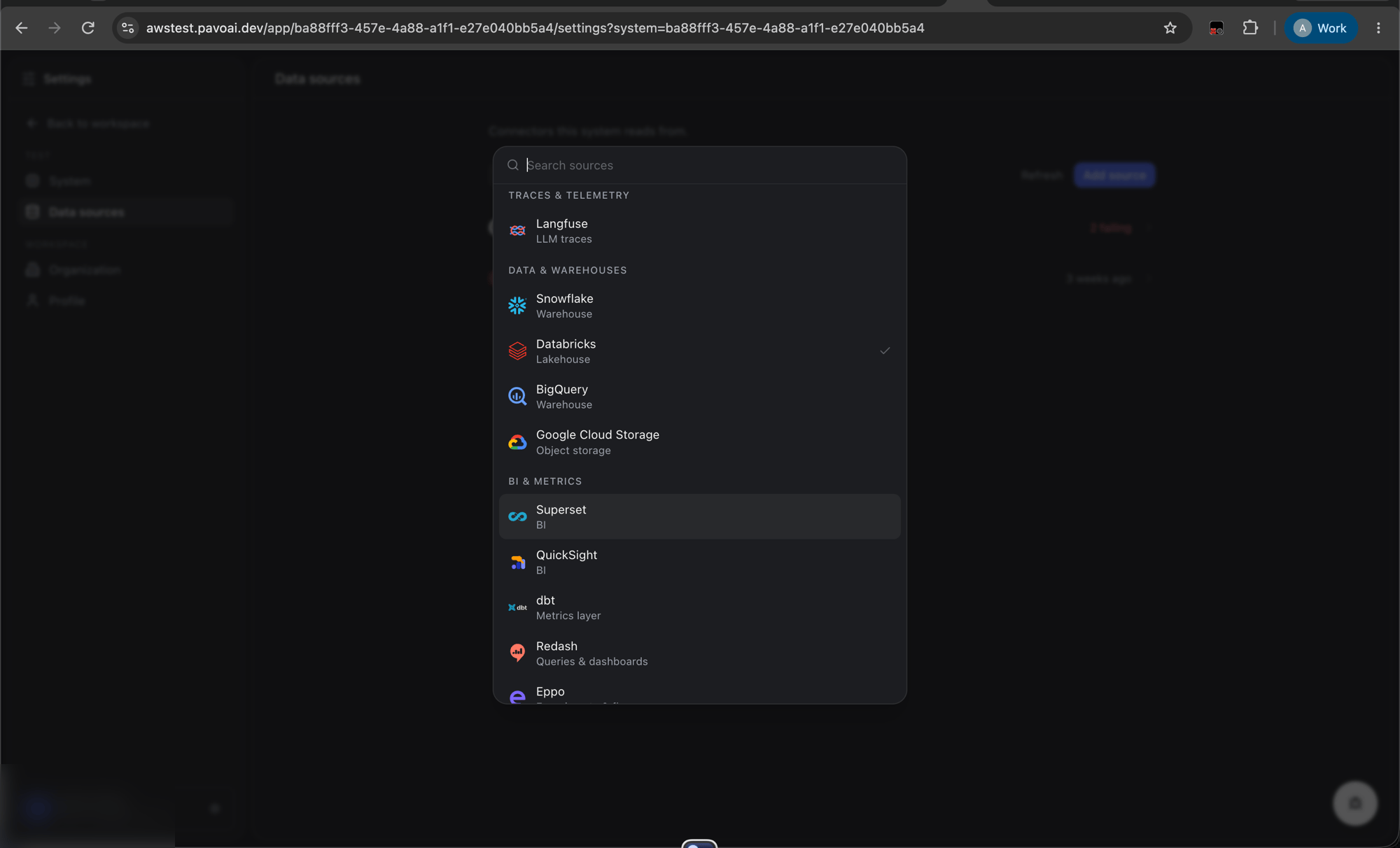
Option B: Snowflake Data Source
If your dbt artifacts are stored in Snowflake tables (e.g., via dbt Cloud’s Snowflake artifact storage), use this option.What You Need to Provide
Setup
- Create a read-only Snowflake user with access to the artifact tables
- In Pavo, go to Connectors → dbt
- Select Snowflake as the data source type
- Enter your Snowflake credentials
- Click Connect