

Prerequisites
- A Bitbucket Cloud account with access to the workspace you want to connect
- Workspace admin privileges (needed to create an OAuth consumer)
Step 1: Create an OAuth Consumer in Bitbucket
Pavo authenticates using OAuth 2.0, which requires an OAuth consumer registered in your Bitbucket workspace.- Log in to Bitbucket and navigate to your workspace.
- Go to Settings (gear icon in the left sidebar) → OAuth consumers (under “Apps and features”).
- Click Add consumer.
- Fill in the form:
- Under Permissions, grant the following scopes:
- Click Save.
- After saving, you will see the Key (Client ID) and Secret (Client Secret). Copy both values: you will need them in the next step.
Step 2: Add the Connector in Pavo
Navigate to Settings → Data sources and click Add source.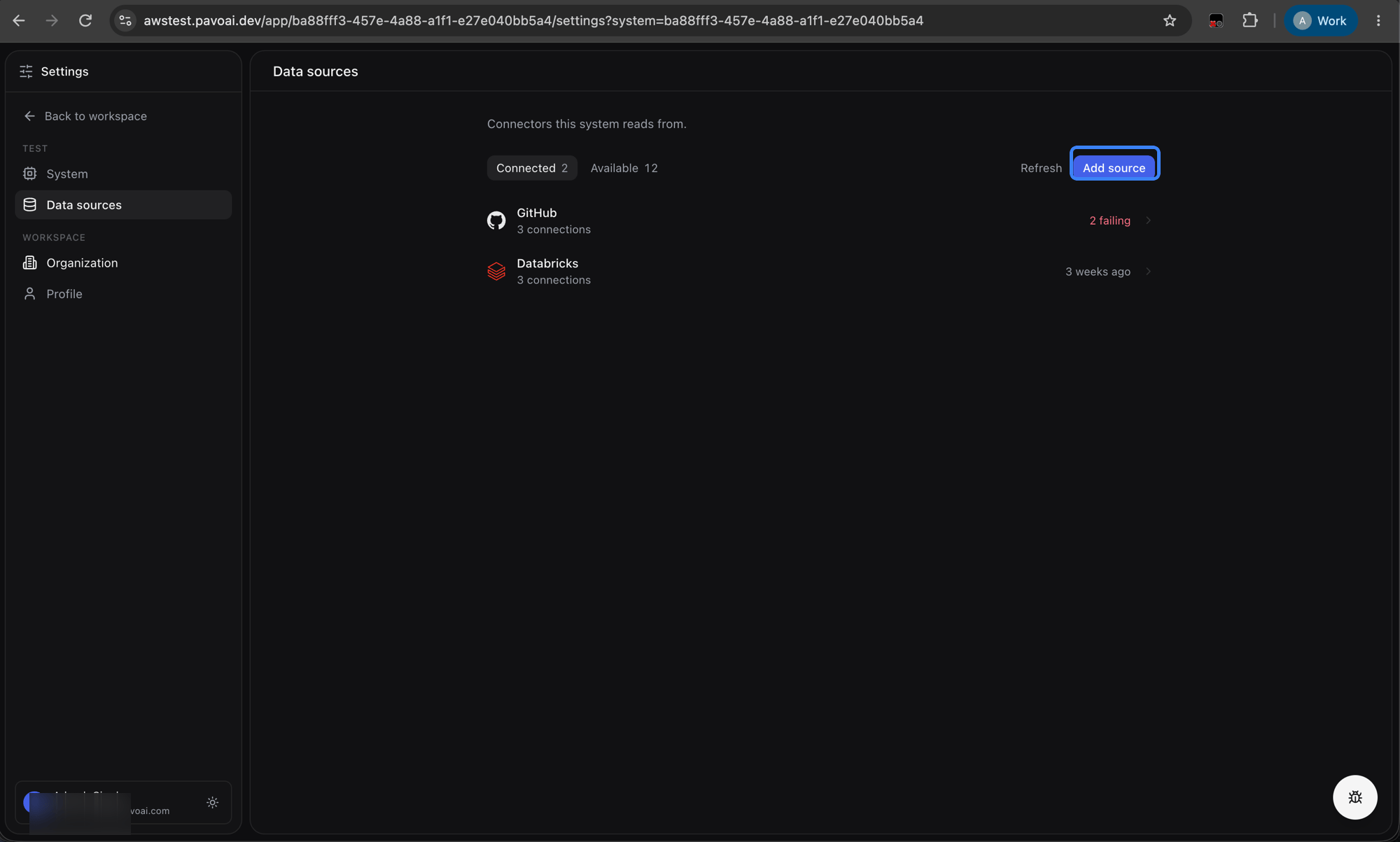
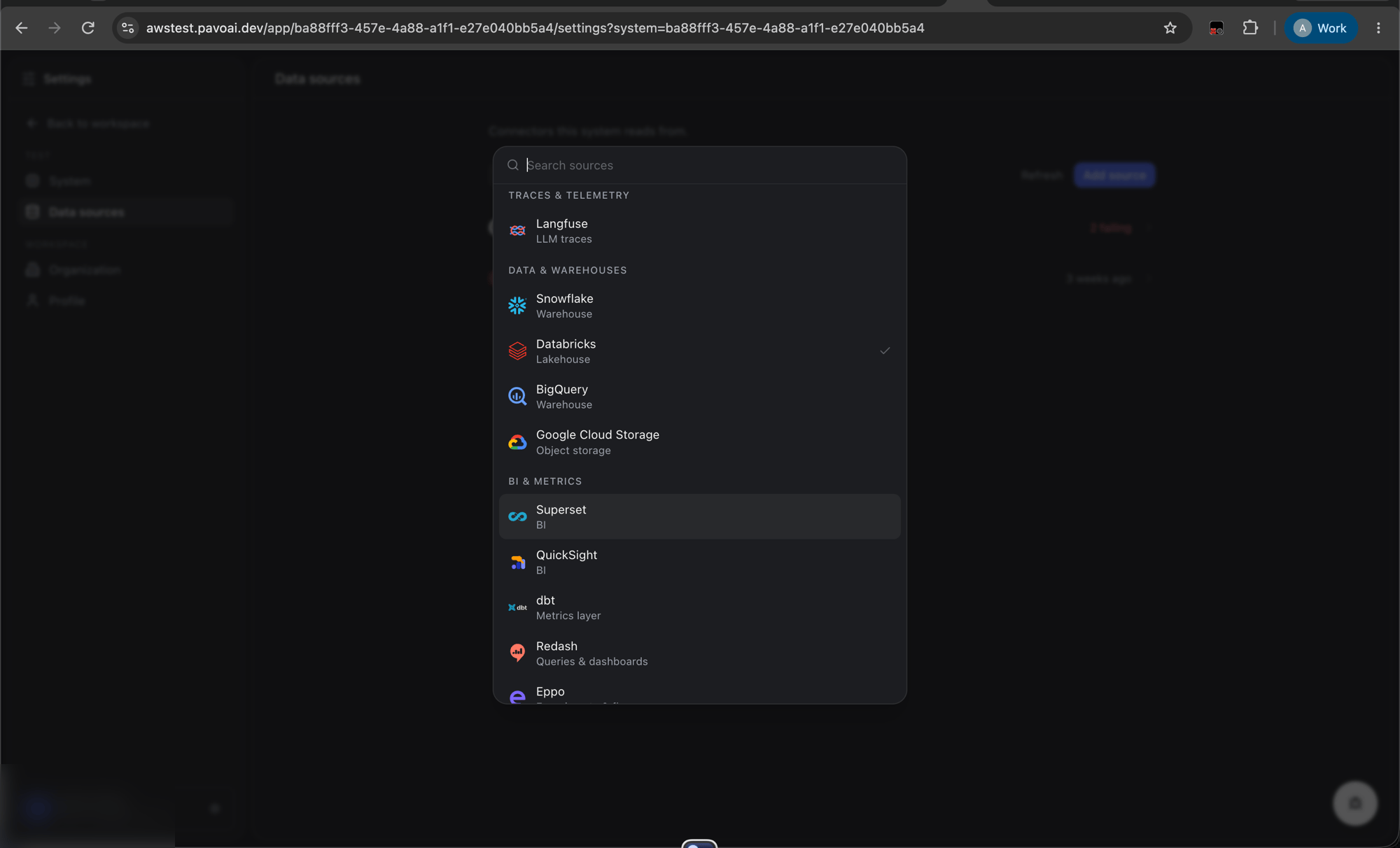
The access token expires periodically. Pavo automatically refreshes it using the refresh token: no manual re-authorization is needed unless you revoke the OAuth consumer.
Step 3: Trigger Sync
Once the connector is authorized and saved, click Sync Now on the Bitbucket connector. Pavo will begin indexing:
Pavo clones repositories via HTTPS to read file contents. It does not push any changes or modify your repositories in any way.
Subsequent syncs are incremental: only files that changed since the last sync are reprocessed.
Bitbucket API Endpoints Used
For transparency, here are the Bitbucket Cloud REST API endpoints Pavo accesses (all read-only):Troubleshooting
”Failed to connect to Bitbucket”
- Ensure the OAuth consumer is still active in your Bitbucket workspace settings.
- The access token may have expired and the refresh failed. Try disconnecting and re-authorizing through the Pavo UI.
- Verify the Key and Secret you entered match the OAuth consumer in Bitbucket.
Missing repositories
- Pavo syncs repositories from the first workspace associated with your Bitbucket account. If your repos are in a different workspace, ensure the authorizing user has access to that workspace.
- Private repositories require the Repositories: Read permission on the OAuth consumer.
Code files not appearing
- Binary files and files exceeding the size threshold are skipped automatically.
- Only files on the default branch are indexed. Feature branches are not included.
Pull requests incomplete
- Pavo fetches all PR states (open, merged, declined). If PRs are missing, verify the Pull requests: Read permission is granted on the OAuth consumer.
Revoking Access
To disconnect Pavo from your Bitbucket workspace:- Go to Bitbucket → Workspace Settings → OAuth consumers.
- Find the
Pavo Integrationconsumer. - Click Delete to permanently revoke access, or remove the consumer’s permissions.