BigQuery Access Setup
Step 1: Create a New Service Account in the GCP project you want Pavo to access
For example:<sa_name>@<project>.iam.gserviceaccount.com
Step 2: Grant BigQuery Permissions
In case of BQ data in multiple projects, grant the created SA access across all the projects.- In the Google Cloud Console, switch to the project that contains the BigQuery data you want us to read.
- In the left navigation bar, go to IAM & Admin → IAM.
- Click Grant access
- In New principals, enter: name of the created sa
<sa_name>@<project>.iam.gserviceaccount.com - In Role, add the following roles (you may need to add multiple):
Category: BigQuery → BigQuery Metadata Viewer
Role ID: roles/bigquery.metadataViewer If you prefer CLI:
Category: BigQuery → BigQuery Job User
Role ID: roles/bigquery.jobUser If you prefer CLI:
Category: BigQuery → BigQuery Resource Viewer
Role ID: roles/bigquery.resourceViewer
(This role includes the bigquery.jobs.listAll permission required to query INFORMATION_SCHEMA.JOBS / JOBS_BY_PROJECT.) If you prefer CLI:
- Click Save.
Step 3: Create Analysis Dataset (Optional)
Only required if you want Pavo to run analysis queries that create temporary tables.
- Create a new BigQuery dataset named
pavo_dataset(this specific name is required for temporary tables during analysis). - Grant the service account the BigQuery Data Editor role for this dataset.
Step 4: Download JSON Key
- In the GCP Console, go to IAM & Admin → Service Accounts.
- Click on the service account you created.
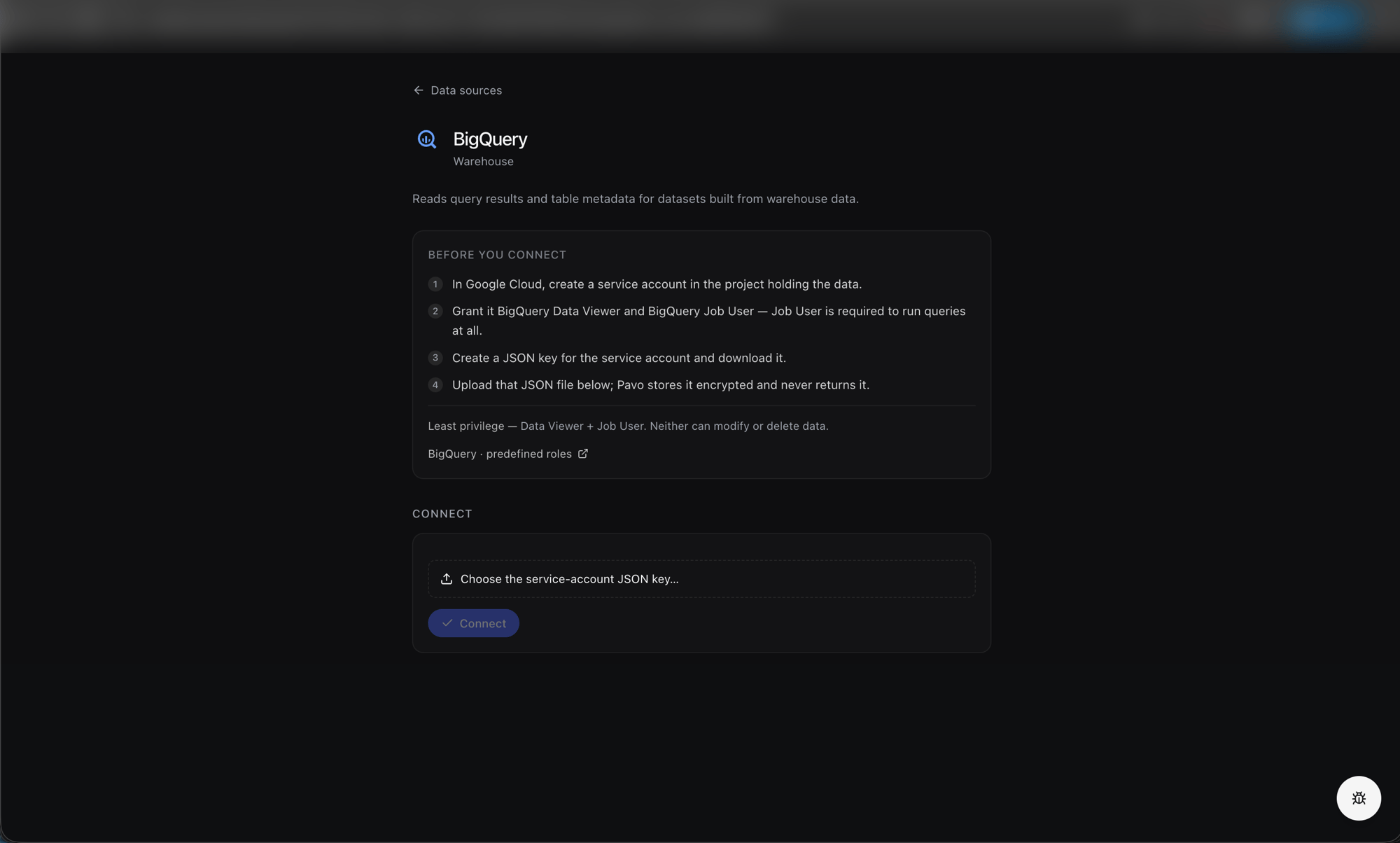
- Go to Keys → Add Key → Create new key → JSON.
- Download the JSON key file.
Step 5: Add the Connector in Pavo
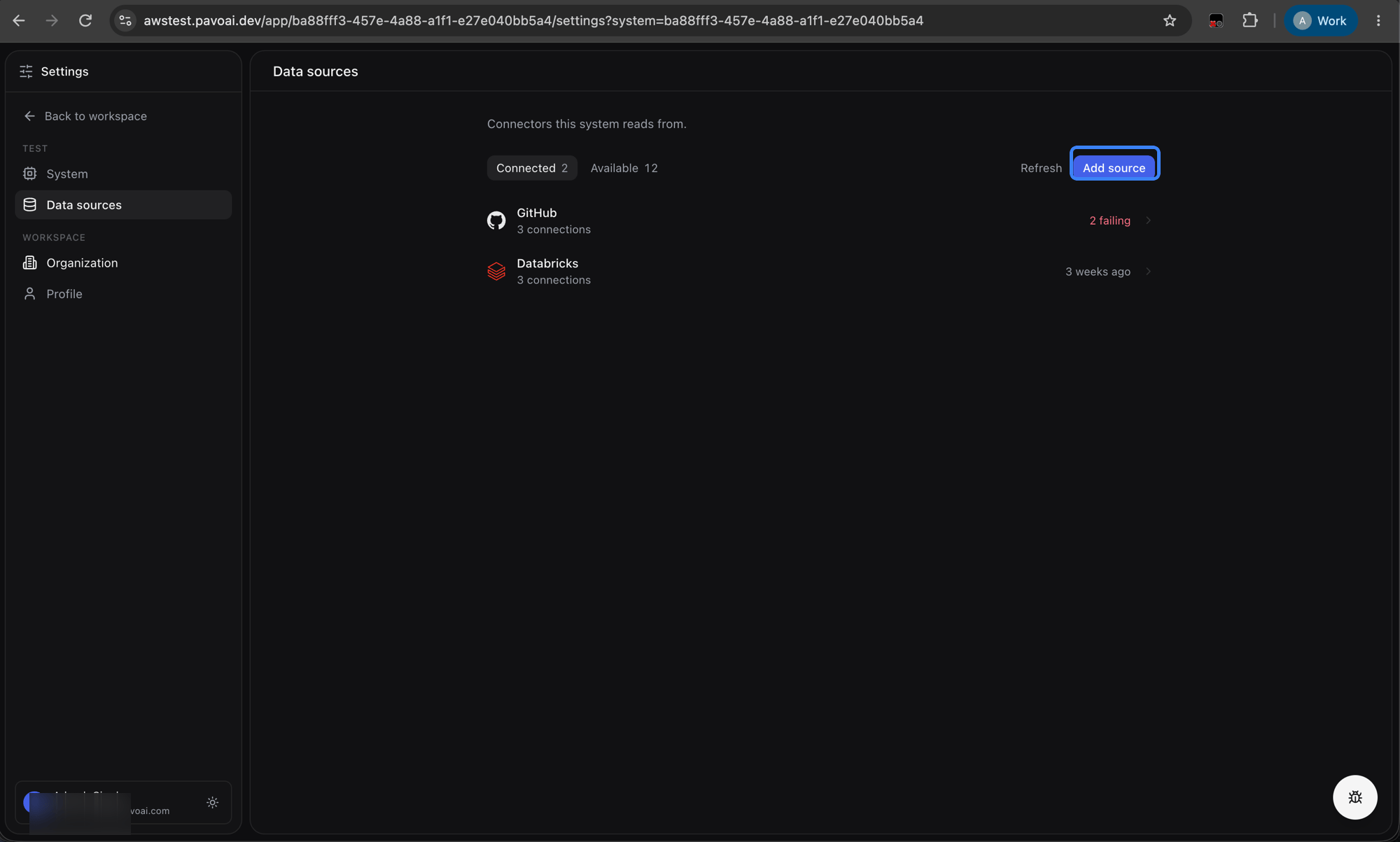
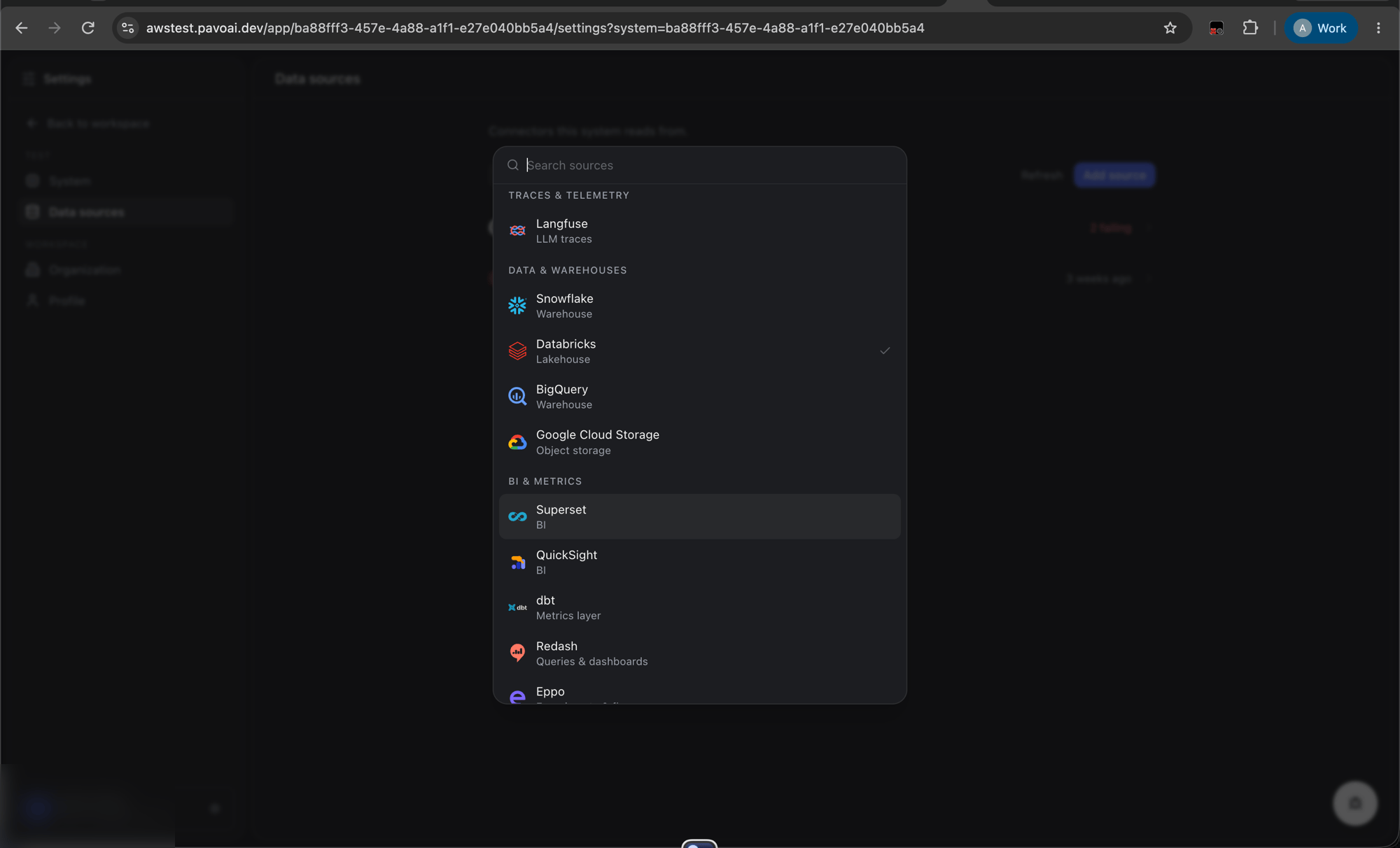
Navigate to Settings → Data sources and click Add source.