

Superset Access Setup
Step 1: Confirm Superset URL
Provide us with your Superset instance URL:- Example: https://superset.yourcompany.com
- Or your internal/VPN URL
Step 2: Create a Pavo User Account
Create a dedicated user account for Pavo in Superset:- Go to Settings → List Users → + Add
- Fill in:
- Username:
pavo-integration - Email: A service account email (e.g.
pavo-integration@yourcompany.com) - Password: Generate a secure password
- Username:
- Click Save
Step 3: Assign Viewer Role/Permissions
Add the Pavo user to a role with read-only permissions: Option A: Use built-in “Gamma” role (simplest)- Assign the Gamma role to the Pavo user
- Gamma provides read-only access to dashboards and charts
Step 4: Enable API Access
Superset supports two authentication methods for API access: Option A: Username/Password (Basic Auth)- Simply share the username and password created in Step 2
- We’ll authenticate via /api/v1/security/login
- Log in as the Pavo user
- Go to Settings → User → Security
- Generate an API token (if available in your Superset version)
Step 5: Add the Connector in Pavo
Navigate to Settings → Data sources and click Add source.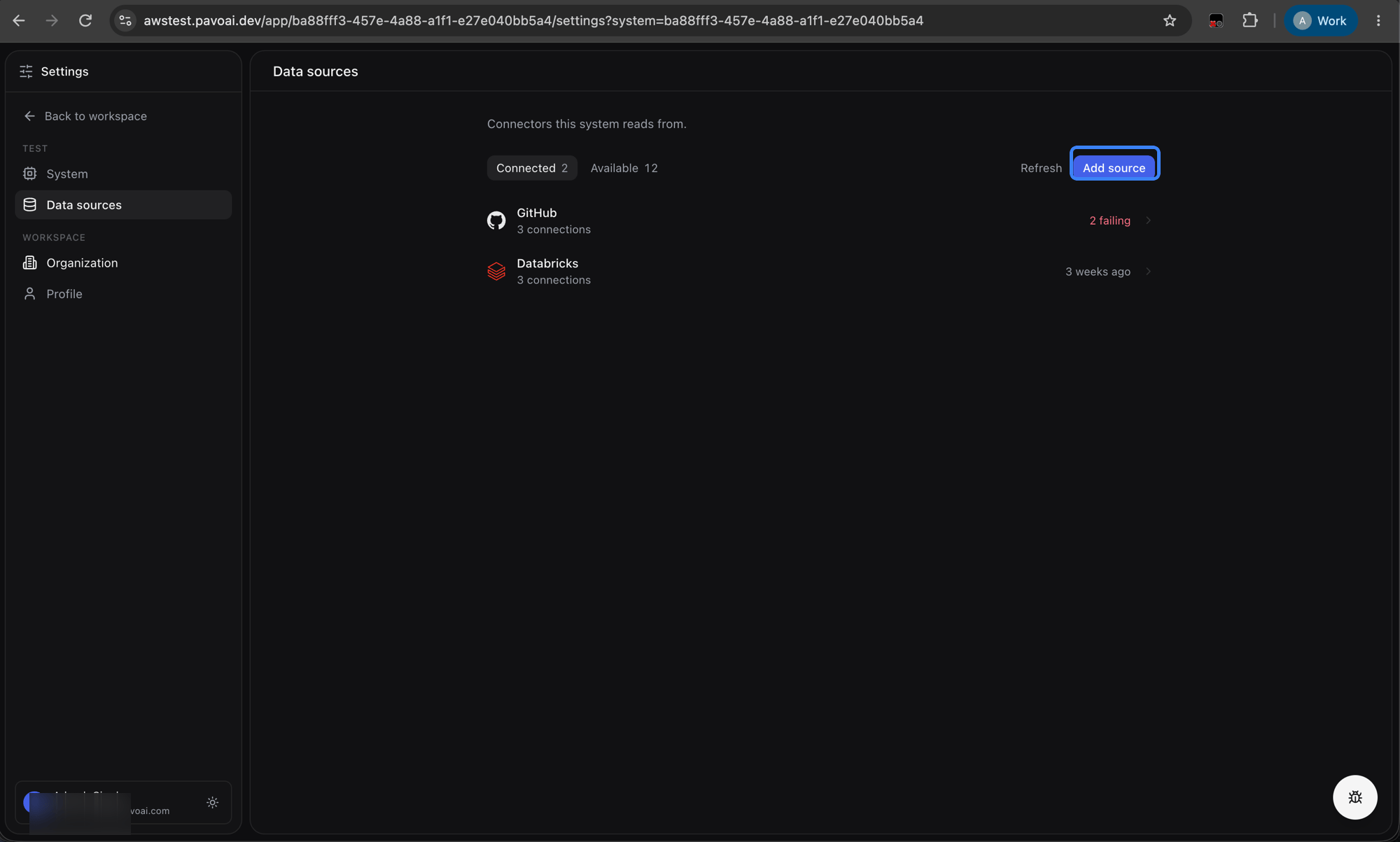
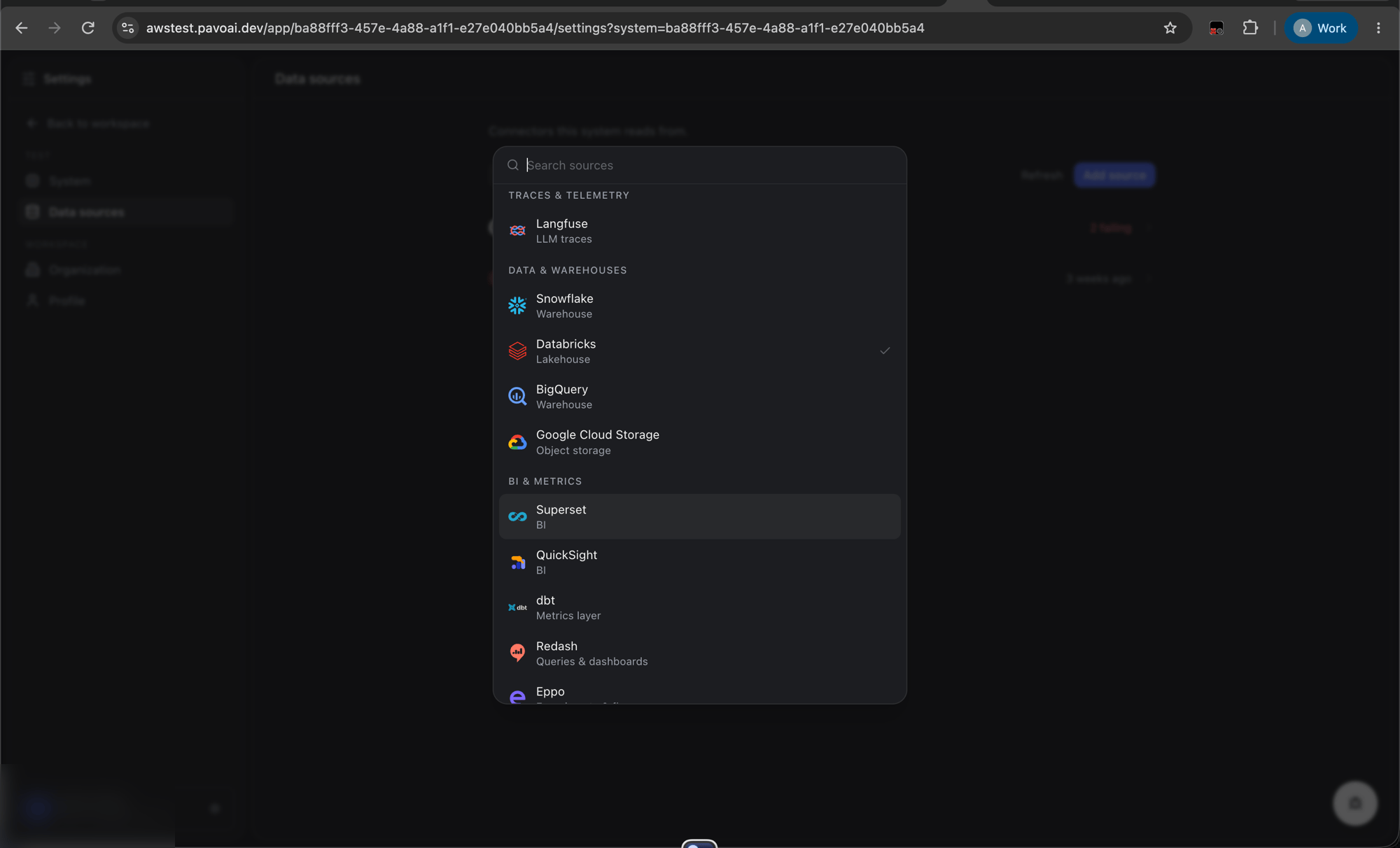
Click Connect. Pavo will verify connectivity and begin syncing.
All credentials are stored encrypted. Access can be revoked any time by disabling the Pavo user account in Superset.